If reading on a screen is hard work, you can have any page on my website read aloud to you. You do not need to download anything. Most phones and computers can already do it.
Find your device below and follow the steps. It takes a minute to set up, and after that it is just a tap or two.
iPhone or iPad
- Open Settings, then Accessibility, then Spoken Content.
- Turn on Speak Screen.
- On any page, swipe down from the top of the screen with two fingers. Your device will start reading.
- A small control panel lets you pause, skip, or change the speed.
Android phone or tablet
- Open the page in Chrome.
- Tap the three dots in the top corner.
- Tap Listen to this page.
Mac
- Open the page in Safari.
- Click the page menu in the address bar.
- Choose Listen to Page.
Using Chrome instead? This works on any computer.
- Click the three dots in the top right corner.
- Choose More tools, then Reading mode.
- A reading panel opens at the side. Click the play button.
- In the same panel you can choose a different voice and change the speed.
Windows computer
- Open the page in Microsoft Edge.
- Click Read aloud at the top of the window, or right-click on the page and choose Read aloud.
- You can choose a different voice and change the speed.
A few tips
- Slow the voice down if it feels rushed. Most devices let you change the speed.
- If you don’t like the voice, try another. Most devices give you a choice, including UK English voices.
- You can read along as you listen. Many people find that helps them take more in.
- The voices are computer-generated, so the odd word may sound a little strange.
Phones and computers update their settings from time to time. If these steps do not quite match what you see, search online for the name of your device and “read aloud” for the latest instructions.
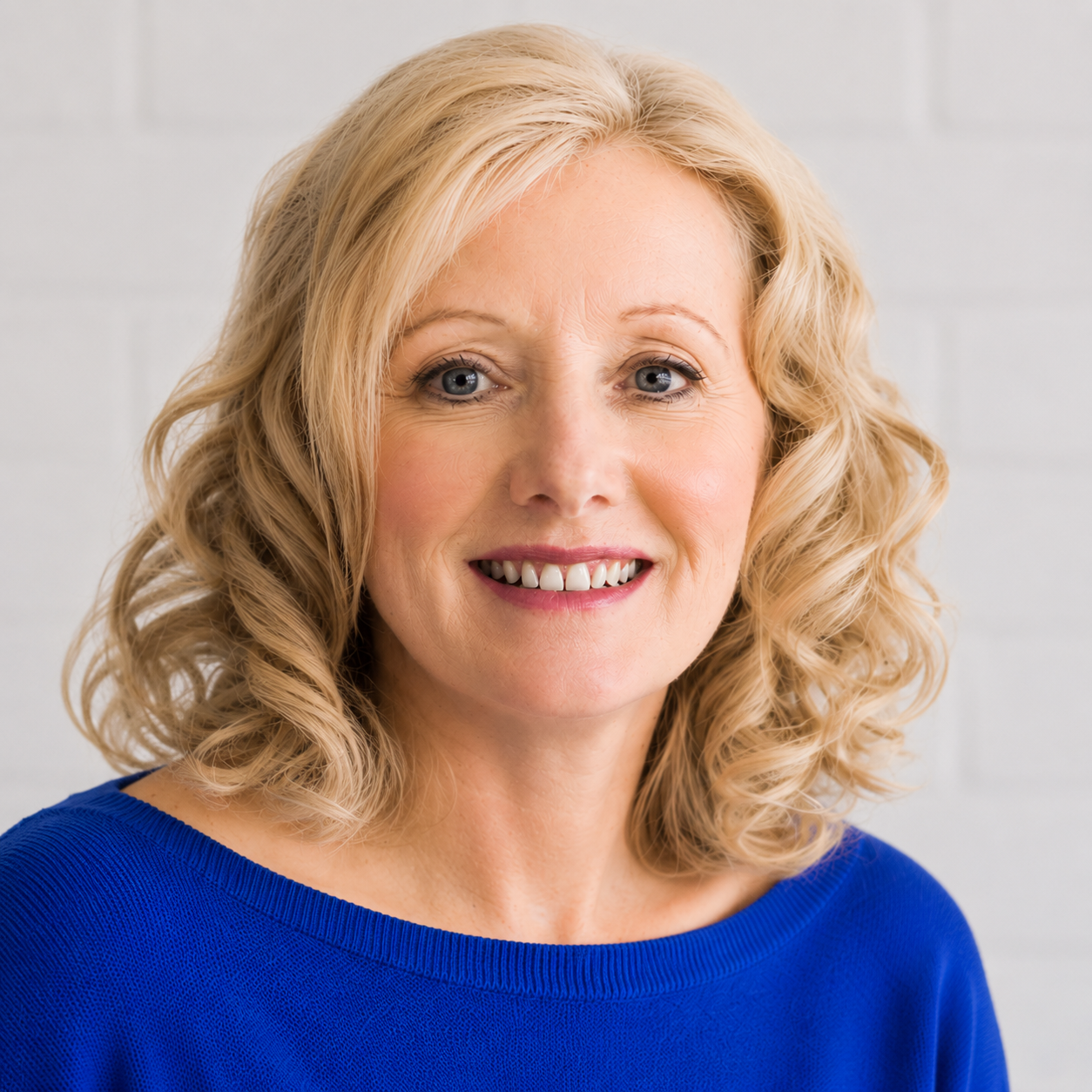
About Linda Fox
Linda is an ICF-ACC credentialled adult ADHD coach (ADHD Life & Business Coach, CALC), with lived experience of ADHD herself. She has been coaching adults with ADHD since 2000, one of the very first specialist ADHD coaches in the UK.
She works with entrepreneurs, legal and medical professionals, and others navigating demanding careers, helping them build practical strategies that fit how their brain actually works rather than fighting against it.
UK-based, supporting clients with ADHD and AuDHD worldwide on Zoom.